
The editor gives you one screen where you can see the elements of your design and edit them.
Seeing your design elements
Each individual item in a design is called an "element." In SwiftUI, these would be called "views."
Elements are listed out in the Outline on the left side, or the bottom when designing on iPhone. This is where you see each element in your design. This is similar to a layer list in a canvas-based design tool.
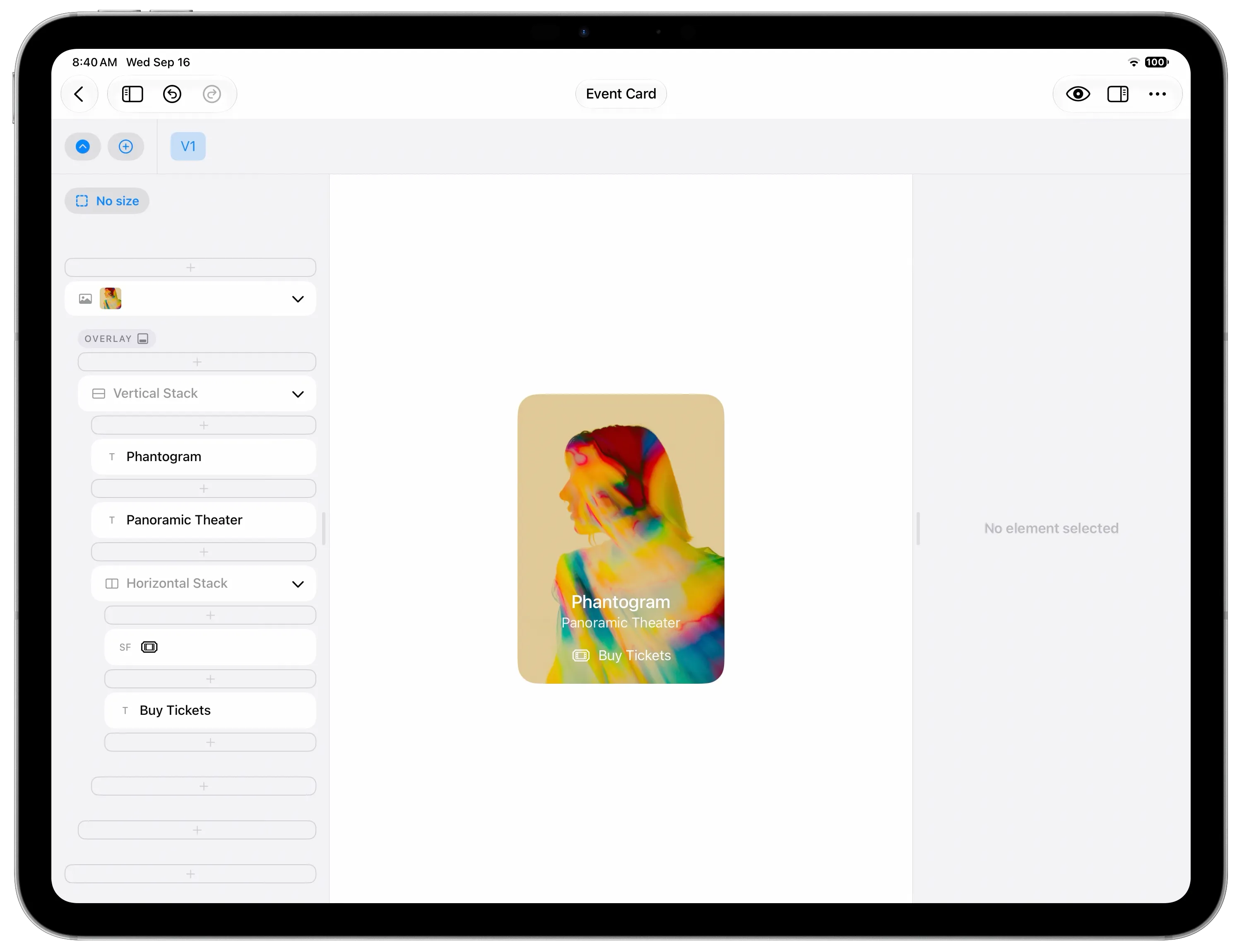
Selecting an element
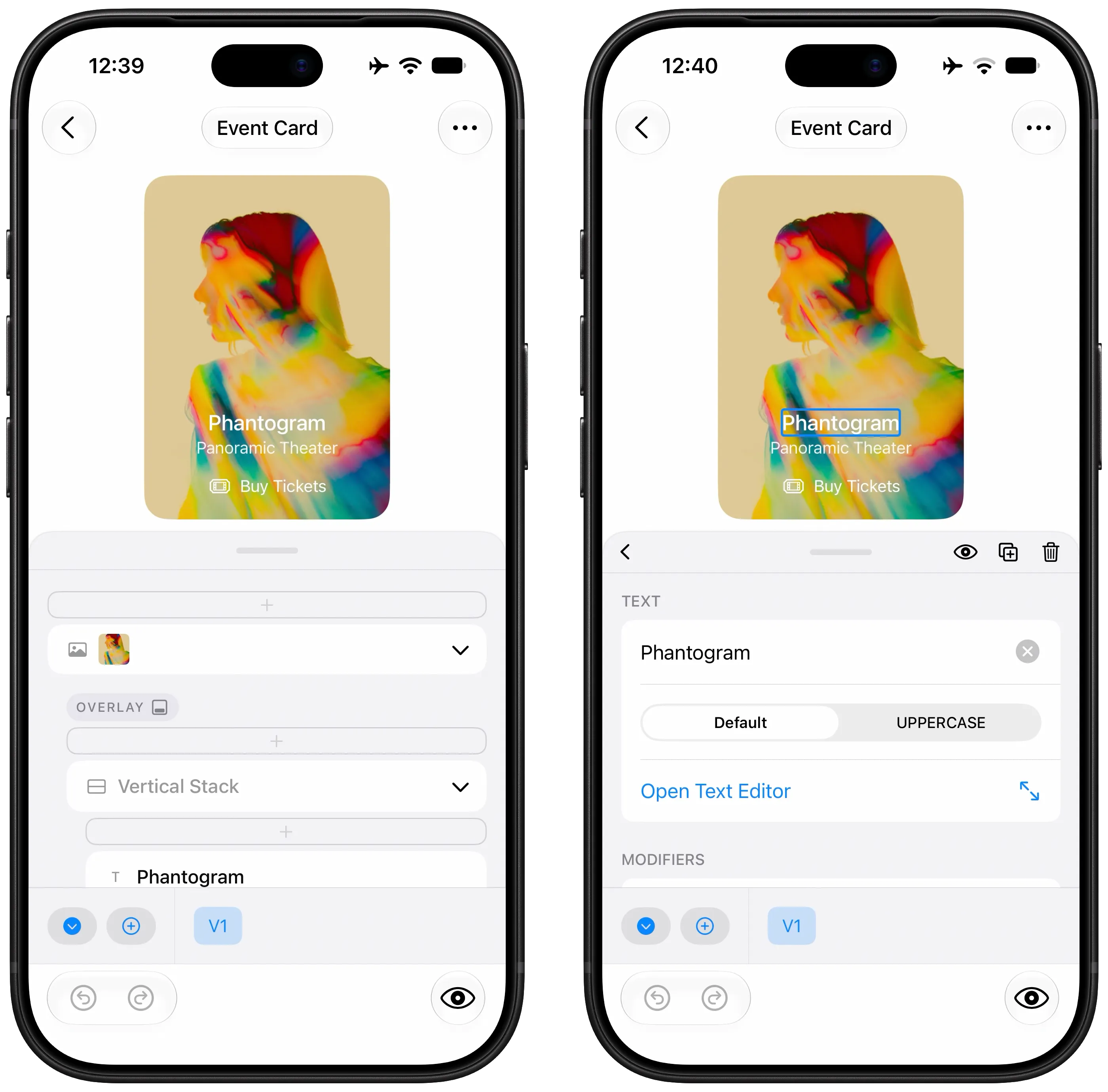
Tap on an element to select it. The element's inspector will appear on the opposite side of the screen, or as a new drawer on iPhone.
Quick actions are also displayed below the selected element in the Outline.
The inspector that appears contains all the relevant options you can edit for a given element. The inspector is also where you can add modifiers, copy the SwiftUI code, or duplicate the element.
Adding an element
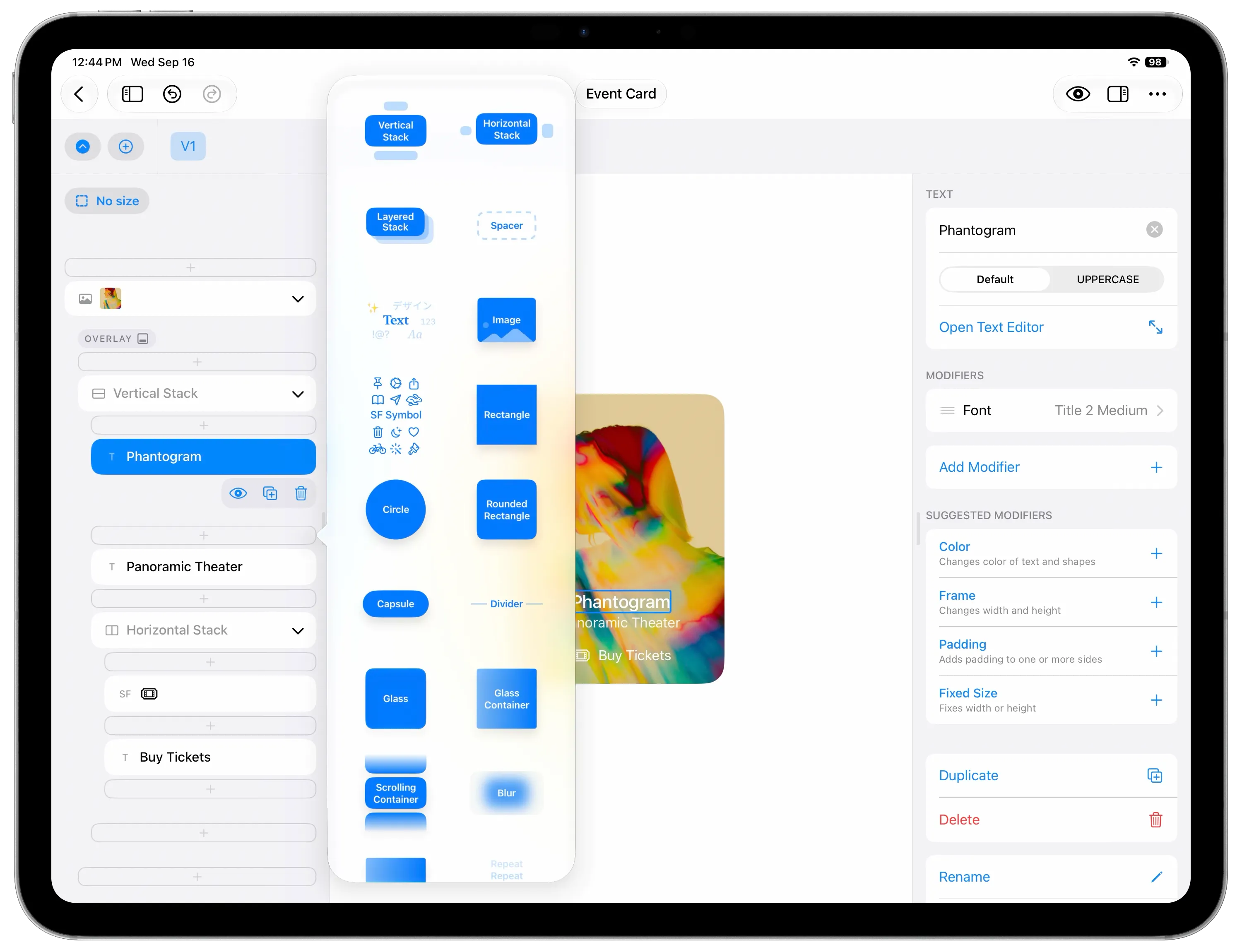
Add a new element to your design by finding the + button row in the spot where you want the new element to be inserted. There are + button rows before and after every existing element.
Tapping the + button row shows a list of all the element types that can be added.
Some elements naturally contain other elements, like Vertical Stacks, so you can add new elements into a Vertical Stack. Or, you can add a new element after the Vertical Stack.
Moving elements
Long press and drag to move an element to a new position in your design. The editor automatically prevents invalid moves, like moving an element further into it's own hierarchy.
Renaming your file
Tap the filename at the top of the editor to rename the file.